Nuevas funciones para iPhone
MMGuardian now integrates seamlessly with Apple Screen Time, providing new and powerful parental control functions.
The key differences of the new version are:
- Control de aplicaciones
- Web Filter with Safari
- Funciones del dispositivo
- No need to install an MDM profile
Control de aplicaciones
it is now possible to block and set usage limits on individual apps and categories of apps such as Social or Games. This applies to all apps on the child’s iPhone or iPad, not only ones downloaded from the App Store.
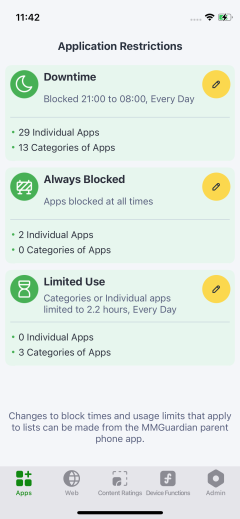
Create lists of apps to be blocked at selected times of the day, blocked always and apps with daily usage limits.
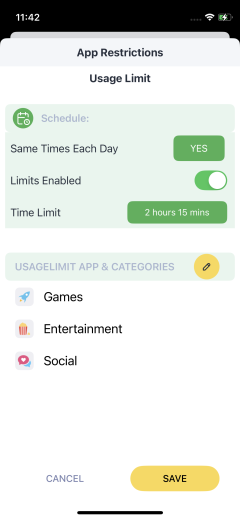
Set daily usage limits on categories of apps, as well as individual apps.
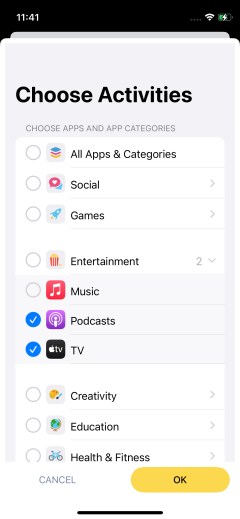
Both categories and individual apps can be selected to be included in a list.
Web Filter with Safari
Web Filter now works with Safari, Chrome and other popular browsers. Use of the MMGuardian app as a web browser is not required.
Please note that at present, web usage reports are only available if the MMGuardian app is used as a web browser. Parents can choose whether to switch to the new web filter function, or continue to use the MMGuardian app web browser filtering and reporting function.
Devce Functions
Parents now have control over more device functions, such as preventing your child from changing their phone’s unlock code. Please note however that disabling the camera is no longer possible.
No MDM Profile Required
If upgrading from the older versions of child phone app, you may uninstall the MMGuardian MDM profile from your child’s iPhone.
– Open the iPhone’s Settings app, and select “General”.
– Scroll down to “Device Management“, and tap on that.
– You should see an entry for the MMGuardian profile, please tap on it.
– Tap on the Remove button at the bottom. (You will be asked by the iPhone system software to enter the phone’s screen-lock PIN).